|
|
| (8 intermediate revisions by the same user not shown) |
| Line 4: |
Line 4: |
| Please contact the university support : | | Please contact the university support : |
|
| |
|
| * '''ULB:''' [mailto:support@ulb.ac.be support@ulb.ac.be] or [https://support.ulb.be/web/support/otrs ULB Support portal] | | * '''ULB:''' [mailto:support@ulb.be support@ulb.be] or [https://support.ulb.be/web/support/otrs ULB Support portal] |
| * '''VUB:''' [mailto:helpdesk@vub.ac.be helpdesk@vub.ac.be] or [http://vub.service-now.com/ VUB Support portal] | | * '''VUB:''' [mailto:helpdesk@vub.be helpdesk@vub.be] or [http://vub.service-now.com/ VUB Support portal] |
|
| |
|
| = Upcoming Change = | | = Configuration = |
|
| |
|
| ULB/VUB are switching to Microsoft as mail provider.
| | = Configure OWA protocol = |
|
| |
|
| * '''VUB:''' All users have been migrated
| | == Linux == |
| * '''ULB:''' Migration to Office 365 is ongoing, IMAP & POP connections will be soon deprecated.
| |
|
| |
|
| * Find [https://support.ulb.be/-/supported_clients_fr/1.8 here] available software supported for '''ULB''' mail.
| | '''Note : For ULB currently the only supported client is Thunderbird with OWL or you need to use the [https://outlook.office.com/mail/inbox webmail], VUB does not provide currently a solution for Linux.'''. |
| | |
| = Configuration =
| |
|
| |
|
| '''ULB mail client information for Office 365 server (@ulb.be addresses) :'''
| |
|
| |
|
| IMAP configuration : | | * First you need to remove your current IMAP or POP ULB mail account, go to the account options -> '''Edit''' -> '''Account Settings''' : |
|
| |
|
| * '''IMAP server address :''' <code>outlook.office365.com</code>
| | [[Image:Thunderbird_OWA_setup_01.png]] |
| * '''IMAP server port :''' <code>993</code>
| |
| * '''IMAP server security protocol :''' <code>SSL/TLS</code>
| |
| * '''IMAP server user name :''' <code>surname.name@ulb.be</code>
| |
| * '''IMAP server authentication method :''' <code>normal password</code>
| |
|
| |
|
| SMTP configuration :
| | * Select your ULB mail account then click on '''Account Options''' -> '''Remove Account''' : |
|
| |
|
| * '''SMTP server address :''' <code>smtp.office365.com</code>
| | [[Image:Thunderbird_OWA_setup_02.png]] |
| * '''SMTP server port :''' <code>587</code>
| |
| * '''SMTP server security protocol :''' <code>STARTTLS</code>
| |
| * '''SMTP server user name :''' <code>surname.name@ulb.be</code>
| |
| * '''SMTP server authentication method :''' <code>normal password</code>
| |
|
| |
|
| ----
| | * Tick '''Remove message data''' and click on '''Confirm''' : |
|
| |
|
| Please find the old parameters to set-up an IMAP connection to the ULB mail server, note that this access will be soon deprecated.
| | [[Image:Thunderbird_OWA_setup_03.png]] |
|
| |
|
| '''ULB mail client information for ULB server (@ulb.ac.be addresses) :''' | | * Go to '''Add-ons''' : |
|
| |
|
| IMAP configuration :
| | [[Image:Thunderbird_OWA_setup_04.png]] |
|
| |
|
| * '''IMAP server address :''' <code>imap.ulb.ac.be</code> | | * On the search field type "OWL" and press enter : |
| * '''IMAP server port :''' <code>993</code>
| |
| * '''IMAP server security protocol :''' <code>SSL/TLS</code>
| |
| * '''IMAP server user name :''' <code>your netid</code>
| |
| * '''IMAP server authentication method :''' <code>normal password</code>
| |
|
| |
|
| SMTP configuration :
| | [[Image:Thunderbird_OWA_setup_05.png]] |
|
| |
|
| * '''SMTP server address :''' <code>smtp.ulb.ac.be</code> | | * Click on '''Add to Thunderbird''' : |
| * '''SMTP server port :''' <code>587</code>
| |
| * '''SMTP server security protocol :''' <code>STARTTLS</code>
| |
| * '''SMTP server user name :''' <code>your netid</code>
| |
| * '''SMTP server authentication method :''' <code>normal password</code>
| |
|
| |
|
| ----
| | [[Image:Thunderbird_OWA_setup_06.png]] |
|
| |
|
| '''VUB mail client information :''' | | * Go back to '''Add-ons''' ('''Tools''' -> '''Add-ons''') click on the tree dots then on '''Preferences''' : |
|
| |
|
| IMAP configuration :
| | [[Image:Thunderbird_OWA_setup_07.png]] |
|
| |
|
| * '''IMAP server address :''' <code>outlook.office365.com</code> | | * Then fill your account information on this screen then press '''Create account''' : |
| * '''IMAP server port :''' <code>993</code>
| |
| * '''IMAP server security protocol :''' <code>SSL/TLS</code>
| |
| * '''IMAP server user name :''' <code>netid@vub.be</code>
| |
| * '''IMAP server authentication method :''' <code>normal password</code>
| |
|
| |
|
| SMTP configuration :
| | [[Image:Thunderbird_OWA_setup_08.png]] |
|
| |
|
| * '''SMTP server address :''' <code>smtp.office365.com</code> | | * '''Your Name :''' John Doe |
| * '''SMTP server port :''' <code>587</code> | | * '''Your email address :''' <code>john.doe@ulb.be</code> |
| * '''SMTP server security protocol :''' <code>STARTTLS</code> | | * '''Your username :''' <code>john.doe@ulb.be</code> |
| * '''SMTP server user name :''' <code>netid@vub.be</code> | | * '''Your password :''' <code>your ULB office 365 password</code> |
| * '''SMTP server authentication method :''' <code>normal password</code> | | * '''Webmail page :''' <code>https://outlook.office.com/mail/inbox</code> |
|
| |
|
| = Thunderbird 78 connection workaround =
| | * Click on '''Create account''' to complete the configuration. |
|
| |
|
| Starting from Thunderbird 78 Mozilla disabled TLS connections version 1.0 & 1.1 by default, you need to enable it in order to connect with the ULB server.
| | == Mac == |
|
| |
|
| * '''Linux''' | | * Microsoft Outlook is recommended but you can use the Mail app on Mac OS X or Thunderbird with OWL. |
| **If you haven't configured an account for now cancel the new account wizard by pressing on "cancel", then press on <code>ALT+F</code> to show the menus and go to <code>Edit > Preferences</code>.
| |
| **Scroll down to the <code>Config Editor</code> and open it.
| |
| **Click on <code>I accept the risk</code>.
| |
| **Search for <code>security.tls.version.min</code> and change the value to <code>1</code>.
| |
| **Restart Thundebird and configure your account.
| |
|
| |
|
| * '''MAC'''
| | == Windows == |
| **If you haven't configured an account for now cancel the new account wizard by pressing on "cancel", then press on <code>COMMAND+F</code> to show the menus and go to <code>Thundebird > Preferences</code>.
| |
| **Scroll down to the <code>Config Editor</code> and open it.
| |
| **Click on <code>I accept the risk</code>.
| |
| **Search for <code>security.tls.version.min</code> and change the value to <code>1</code>.
| |
| **Restart Thundebird and configure your account.
| |
|
| |
|
| * '''Windows''' | | * Microsoft Outlook is recommended but you can use Thunderbird with OWL. |
| **If you haven't configured an account for now cancel the new account wizard by pressing on "cancel", then press on <code>ALT+F</code> to show the menus and go to <code>Tools > Options</code>.
| |
| **Scroll down to the <code>Config Editor</code> and open it.
| |
| **Click on <code>I accept the risk</code>.
| |
| **Search for <code>security.tls.version.min</code> and change the value to <code>1</code>.
| |
| **Restart Thundebird and configure your account.
| |
Support
We are not in charge of the emails servers.
Please contact the university support :
Configuration
Configure OWA protocol
Linux
Note : For ULB currently the only supported client is Thunderbird with OWL or you need to use the webmail, VUB does not provide currently a solution for Linux..
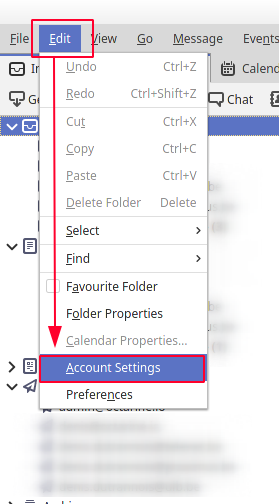
- First you need to remove your current IMAP or POP ULB mail account, go to the account options -> Edit -> Account Settings :
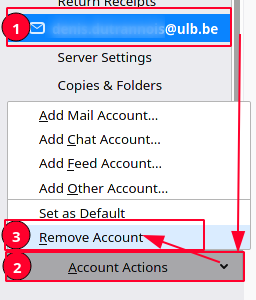
- Select your ULB mail account then click on Account Options -> Remove Account :
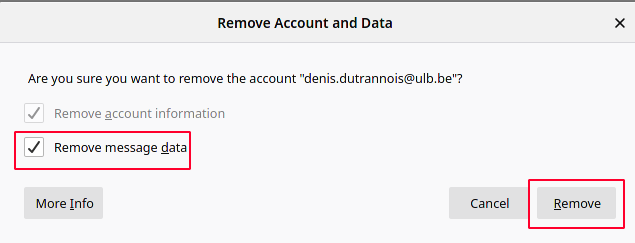
- Tick Remove message data and click on Confirm :
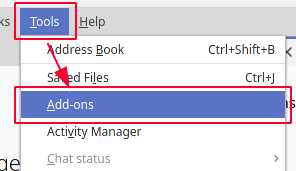
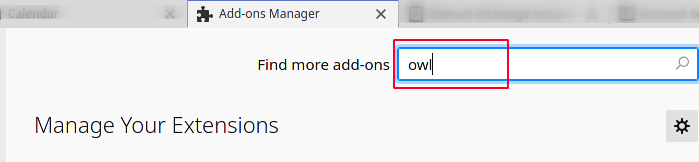
- On the search field type "OWL" and press enter :
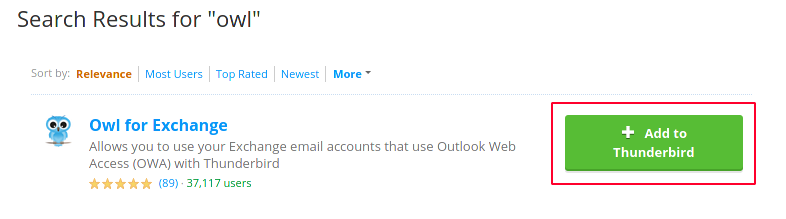
- Click on Add to Thunderbird :
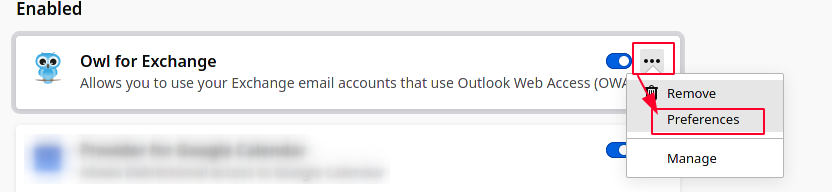
- Go back to Add-ons (Tools -> Add-ons) click on the tree dots then on Preferences :
- Then fill your account information on this screen then press Create account :
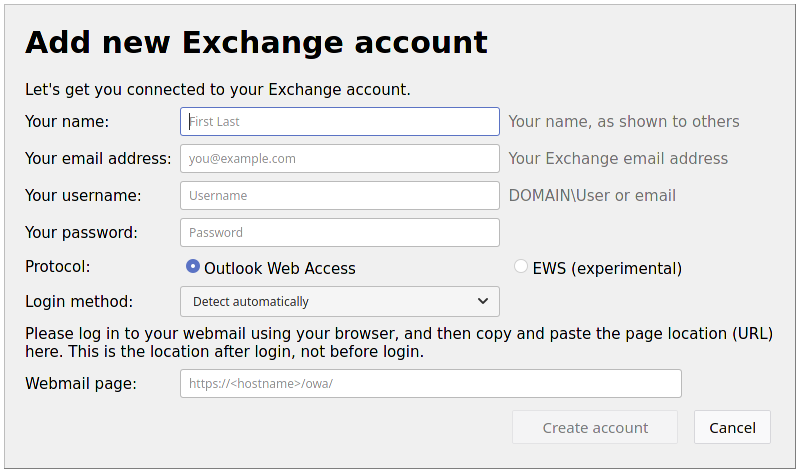
- Your Name : John Doe
- Your email address :
john.doe@ulb.be
- Your username :
john.doe@ulb.be
- Your password :
your ULB office 365 password
- Webmail page :
https://outlook.office.com/mail/inbox
- Click on Create account to complete the configuration.
Mac
- Microsoft Outlook is recommended but you can use the Mail app on Mac OS X or Thunderbird with OWL.
Windows
- Microsoft Outlook is recommended but you can use Thunderbird with OWL.


